Webhooks let FormHug push submission data to your server the moment something happens — no polling, no manual exports. Your endpoint receives a POST request with the full entry payload within seconds of the event. Use webhooks when the built-in integrations aren’t enough and you need full control over what happens after a form is submitted. Common scenarios:
  • Sync to your own database — a waitlist form pushes each signup directly into your backend, calculates a queue position based on referral count, and sends a personalized confirmation email
  • Trigger a workflow — a booking form fires your internal scheduling logic the moment someone submits, rather than waiting for a nightly sync
  • Connect to any tool — send submissions to a CRM, Slack channel, data warehouse, or any system that accepts HTTP, without being limited to pre-built integrations
  • Filter before processing — use conditions to only fire the webhook when specific criteria are met, so your backend only receives the submissions it cares about
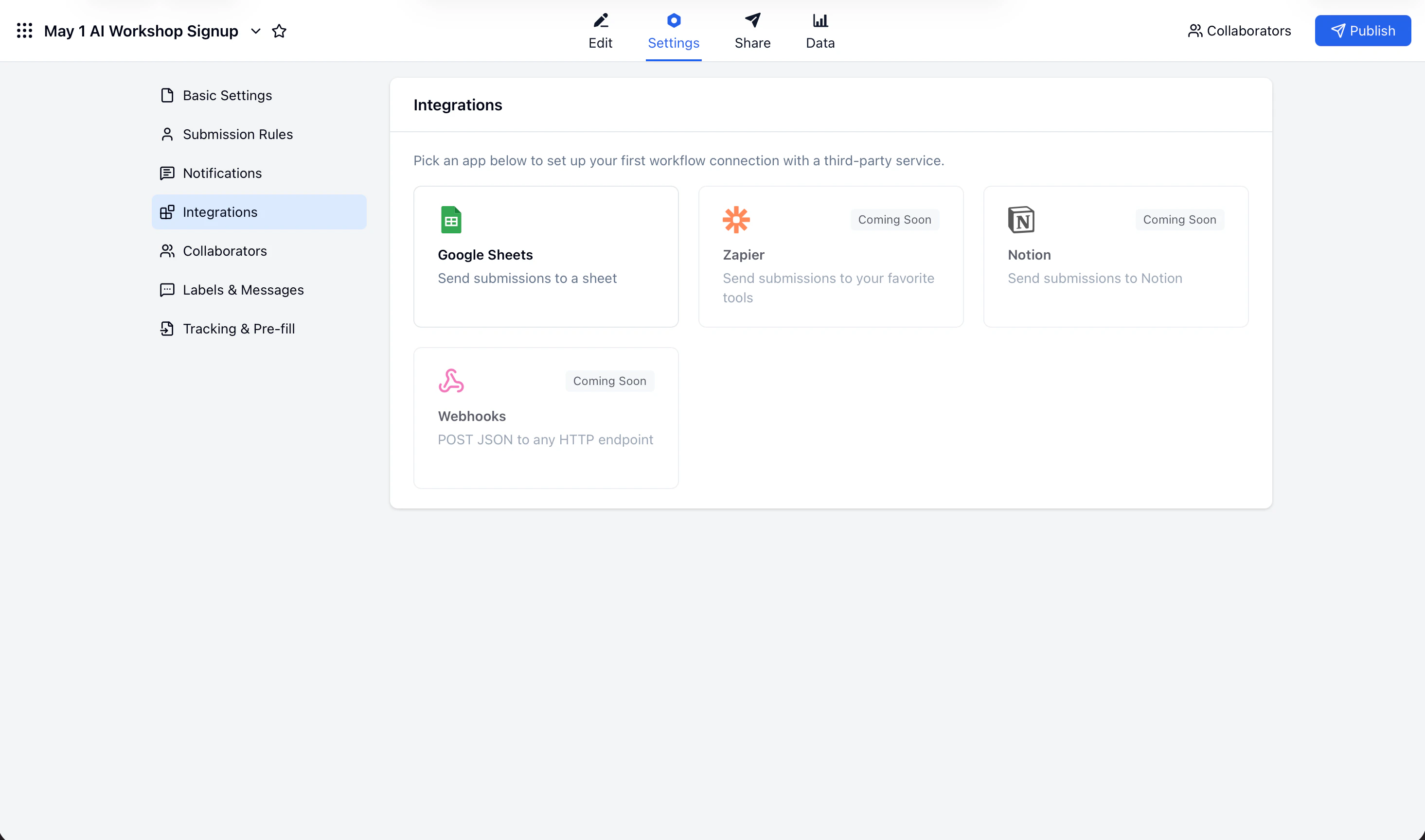
FormHug form settings Integrations page showing available connections

Create a Webhook

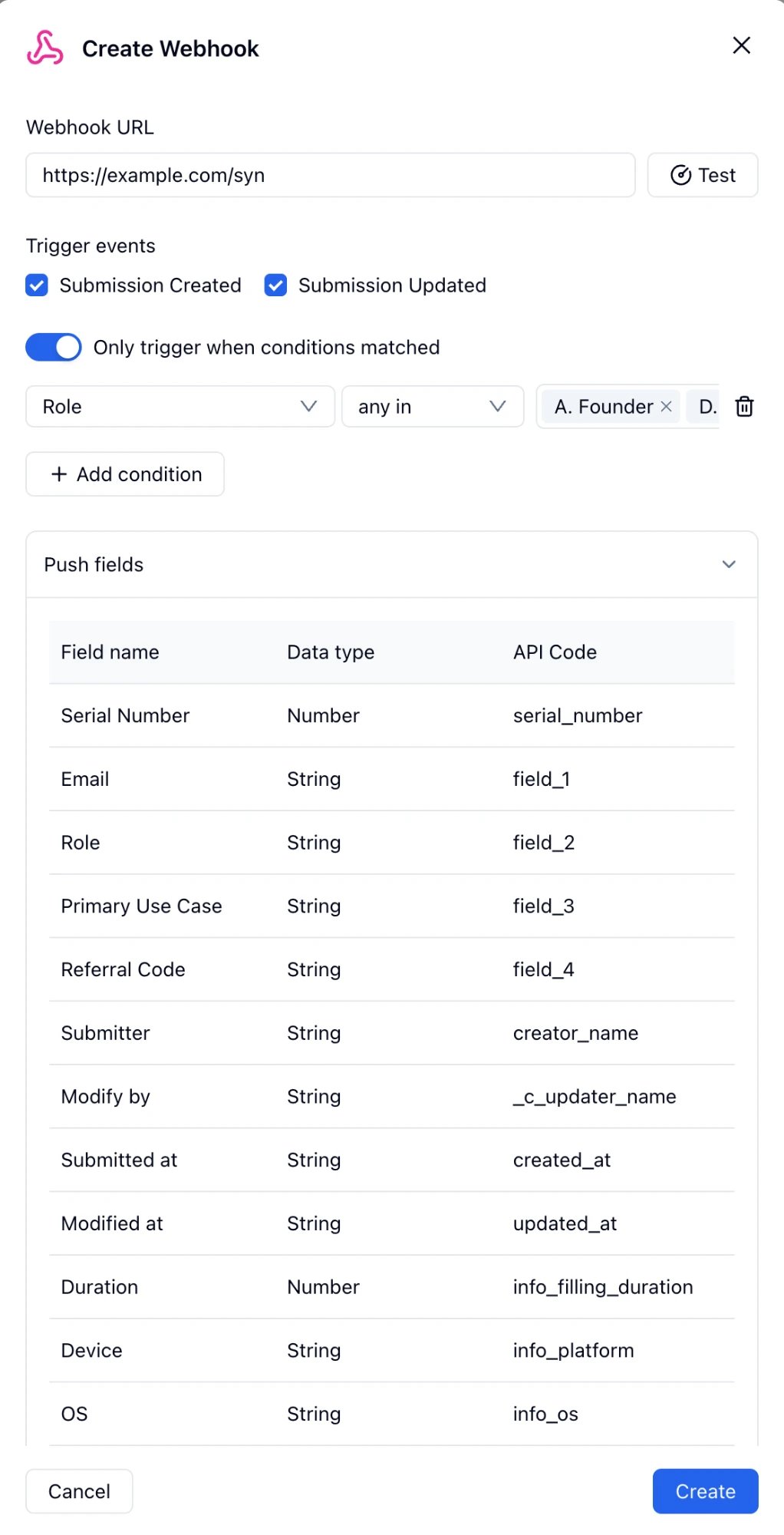
FormHug Create Webhook dialog showing URL field, trigger events, conditions, and push fields
1

Open form settings

Open your form and go to SettingsIntegrations.
2

Add a webhook

Click Add connection and select Webhook.
3

Enter your endpoint URL

Paste your server’s URL into the Webhook URL field. Click Test to send a sample request and verify your endpoint is reachable.
4

Choose trigger events

Check one or both events:
  • Submission Created — fires when a new entry is submitted
  • Submission Updated — fires when an existing entry is edited
5

Add conditions (optional)

Toggle Only trigger when conditions matched to filter which submissions fire the webhook. For example, only notify your backend when Role is Founder or Developer.
6

Review push fields

Expand Push fields to see exactly which fields and API codes will be included in the payload. All fields are pushed by default.
7

Create

Click Create. The webhook appears in My connections and starts firing immediately.

Trigger Events

EventWhen it fires
entry_createdA new submission is received
entry_updatedAn existing submission is edited
entry_paidA payment submission is completed

Payload Format

FormHug sends a POST request with Content-Type: application/json. The body follows this structure:
{
  "data": {
    "event_type": "entry_created",
    "data": {
      "form": "KPBpZA",
      "form_name": "Gen-AI Product Waitlist",
      "entry": {
        "serial_number": 42,
        "field_1": "alex@example.com",
        "field_2": "Founder",
        "field_3": "Content creation & copywriting",
        "field_4": "REF-SARAH",
        "creator_name": "Alex Chen",
        "created_at": "2025-06-09T09:23:41Z",
        "updated_at": "2025-06-09T09:23:41Z",
        "info_filling_duration": 87,
        "info_platform": "Desktop",
        "info_os": "macOS",
        "info_browser": "Chrome",
        "info_remote_ip": "203.0.113.42"
      }
    }
  }
}

Entry fields

API CodeField nameTypeDescription
serial_numberSerial NumberNumberAuto-incrementing entry number
field_1field_NYour form fieldsStringSubmitted field values, in form order
creator_nameSubmitterStringName of the submitter (if collected)
created_atSubmitted atStringISO 8601 timestamp
updated_atModified atStringISO 8601 timestamp of last edit
info_filling_durationDurationNumberTime spent filling the form, in seconds
info_platformDeviceStringDesktop or Mobile
info_osOSStringSubmitter’s operating system
info_browserBrowserStringSubmitter’s browser
info_remote_ipIP AddressStringSubmitter’s IP address
The exact API codes for your form fields (field_1, field_2, etc.) are listed in the Push fields table inside the webhook configuration dialog.

Receiving the Webhook

Your endpoint must return a 2xx response. Here is a minimal example in Node.js:
app.post('/webhook/formhug', express.json(), (req, res) => {
  const { event_type, data } = req.body.data;
  const entry = data.entry;

  if (event_type === 'entry_created') {
    // entry.field_1 → Email
    // entry.field_2 → Role
    // entry.field_3 → Primary Use Case
    // entry.field_4 → Referral Code
    addToWaitlist(entry);
  }

  res.sendStatus(200);
});
Respond with 200 before doing any slow work (database writes, email sends). If your endpoint times out or returns a non-2xx status, FormHug will retry the delivery.

Manage Webhooks

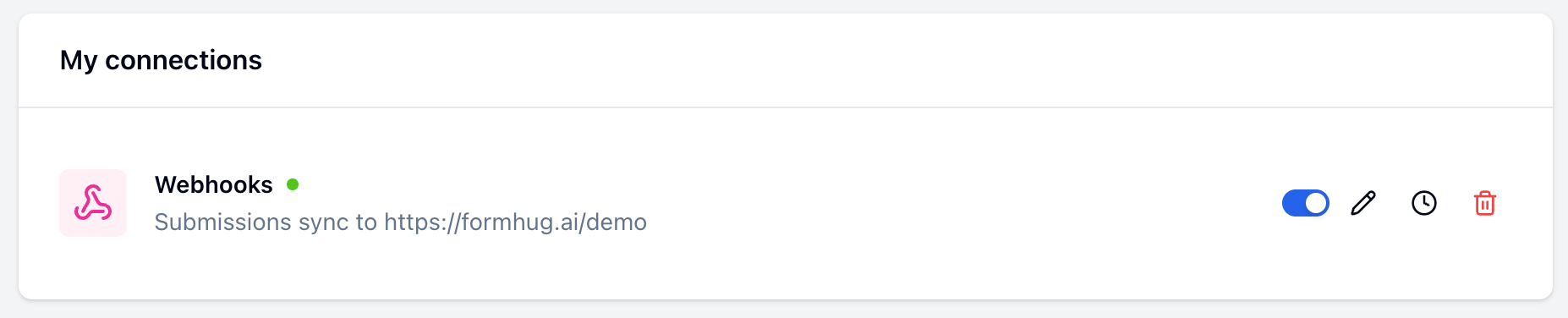
Active webhooks appear in My connections on the Integrations page. My connections panel showing an active webhook with enable, edit, history, and delete controls From there you can:
ActionHow
Enable / disableToggle the switch
Edit URL, events, or conditionsClick the pencil icon
View delivery historyClick the clock icon
DeleteClick the trash icon

Google Sheets

Sync submissions to a spreadsheet automatically

Stripe

Collect payments directly inside your form

Submissions

View and manage all entries in FormHug
Last modified on June 9, 2026