

Connect FormHug to Claude
Use these steps for Claude on the web or mobile and for Claude Desktop.1
Install FormHug
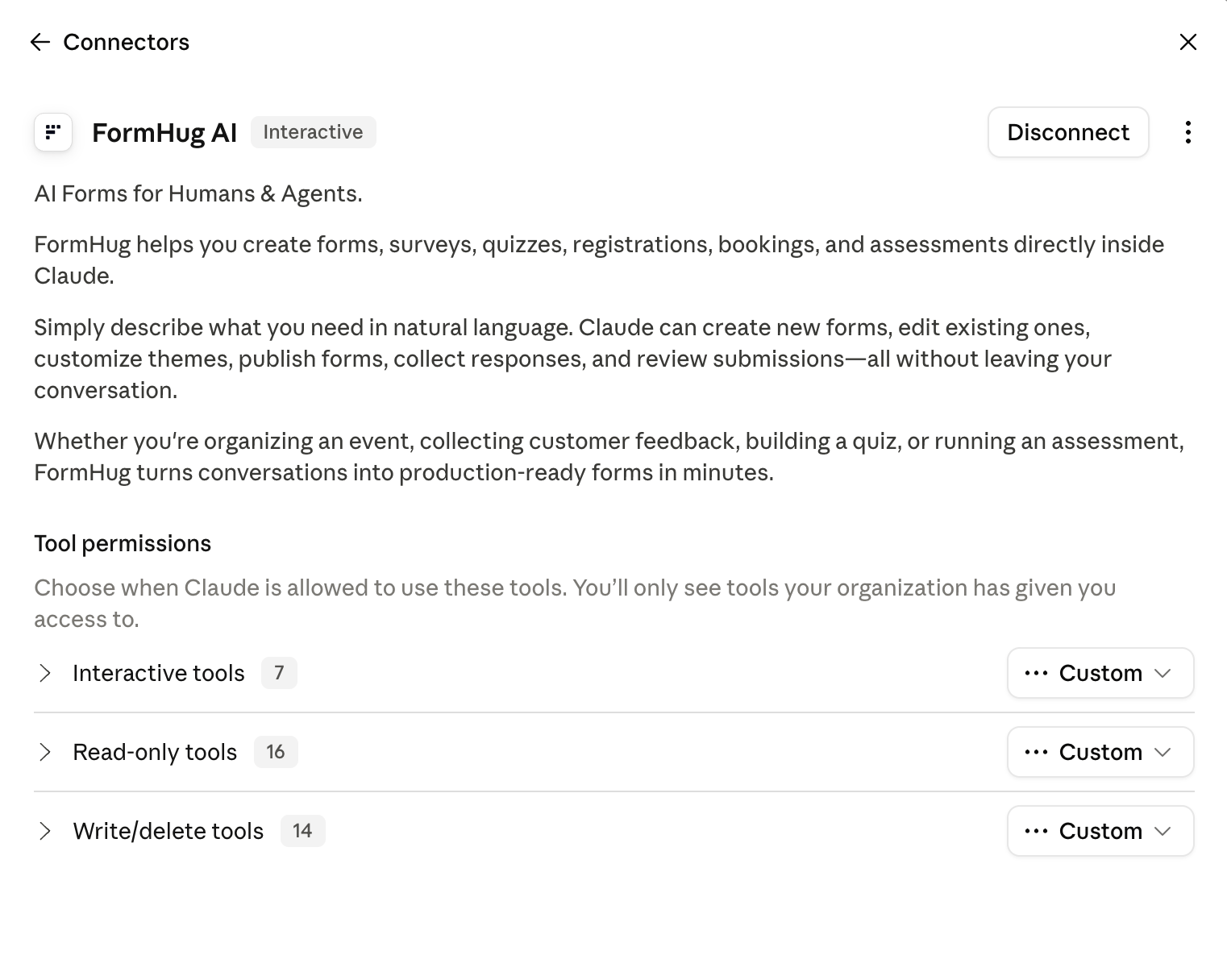
Open FormHug in the Claude Connectors directory and click Connect.You can also go to Customize → Connectors in Claude, search for FormHug, and select it from the results.
2
Authorize your FormHug account
Sign in to FormHug in the browser window that opens and approve access. Claude can only work with FormHug data available to the account you authorize.
3
Enable FormHug in your conversation
In a Claude conversation, click + → Connectors and make sure FormHug is enabled.
4
Try your first request
Ask Claude to create a form:
Create a registration form for our annual AI meetup with fields for name, email, company, job title, and dietary preferences.
Team and Enterprise plans: An Owner or Primary Owner must first add FormHug from Organization settings → Connectors. Each member can then connect their own FormHug account from Customize → Connectors.
Connect FormHug to Claude Code
Add the FormHug remote MCP server from your terminal:user scope makes FormHug available across your Claude Code projects. To limit it to the current project, replace --scope user with --scope project.
Then open Claude Code and run:
/mcp or from your terminal:
What you can do
Create forms from natural language
Describe the outcome and the information you need to collect. Claude can create the form and return a shareable link.Create a customer feedback survey for our SaaS product with an NPS question, a feature request field, and an optional email field.
Edit existing forms
Refer to a form by name and explain the change. Claude can add, update, remove, or reorder fields and adjust form settings or themes.Open my Customer Feedback form and add a required rating question asking how likely the customer is to recommend us.
Preview and publish forms
Ask Claude to show the form before sharing it. On supported Claude surfaces, FormHug can display an interactive preview directly in the conversation.Preview my Annual Meetup Registration form, then publish it and give me the public link.
Review submissions
Claude can retrieve submissions from forms in your authorized FormHug workspace and help summarize the results.Show me the latest submissions from my Product Feedback survey and summarize the most common feature requests.
More prompts to try
- “Build a 20-question JavaScript quiz with automatic scoring.”
- “Create a booking form for 30-minute product consultations.”
- “Add a required Company field to my Event Registration form.”
- “Change my Customer Survey button color to match
#6C5CE7.” - “List my forms and show me which ones were updated most recently.”
- “Show me the 10 latest submissions to my workshop registration form.”
Permissions and confirmations
FormHug operates within the workspace of the account you authorize. Depending on your request, Claude can read form structures and submissions or create and modify forms, fields, themes, settings, folders, and submission data. Review Claude’s confirmation carefully before approving actions that change data. Deleting a form or other FormHug content may be permanent.Troubleshooting
FormHug does not appear in the conversation
Open + → Connectors in the conversation and enable FormHug. If it is missing, return to Customize → Connectors and reconnect it.OAuth does not complete in Claude Code
Run/mcp, select formhug, and start authentication again. If the browser redirect cannot return to Claude Code, copy the full callback URL from the browser address bar and paste it into the URL prompt in Claude Code.
Claude cannot find a form
Confirm that you connected the FormHug account that owns the form. Include the exact form name in your request, or ask Claude to list your forms first.The interactive preview does not appear
Make sure FormHug is connected and enabled for the current conversation, then start a new conversation and try again. Your organization may also restrict interactive connector tools. For the complete server specification, available tools, and setup instructions for other MCP clients, see FormHug MCP Server.Related
Install FormHug in Claude
Connect FormHug directly from the Claude Connectors directory
FormHug for Claude
See the product overview and Claude workflows
Form Builder for Claude
Read a walkthrough with practical examples
MCP for Agents
Learn how FormHug works with MCP-compatible agents
FormHug MCP Server
Review the server details and available tools