

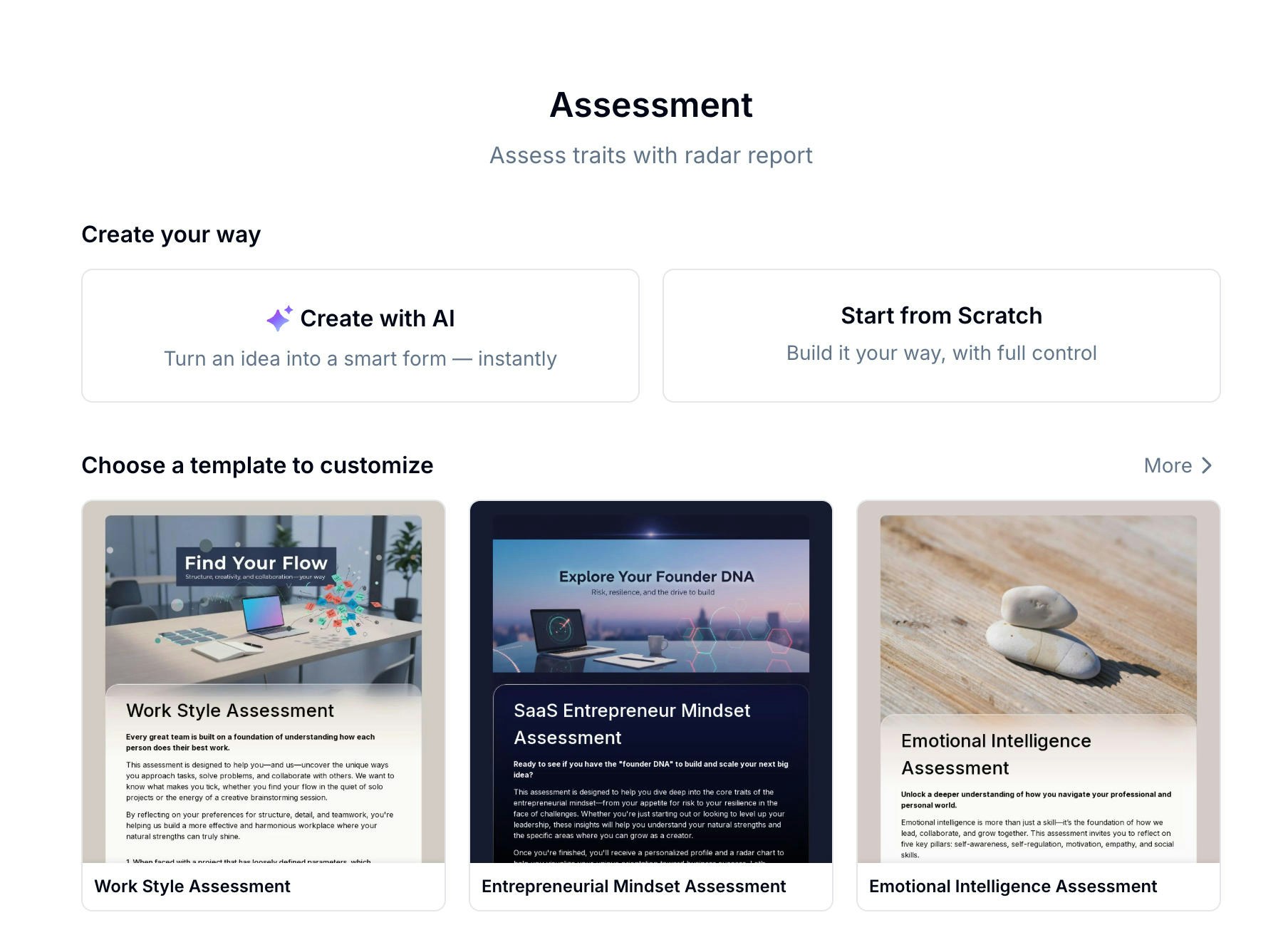
What You Can Build with Assessment
Try a Live Assessment
Work Style Assessment
See how a finished assessment feels — discover how you approach tasks, problems, and collaboration
Create an Assessment Your Way
Create with AI
The fastest path. Describe your assessment topic in one sentence — Evan generates the questions, options, scoring, and dimensions for you.
Start from a Template
Choose from 15+ ready-made assessment templates covering personality, leadership, EQ, and more. Customize and publish in minutes.
Build from Scratch
Add every question manually and configure dimensions, scores, and suggestions exactly how you want them.
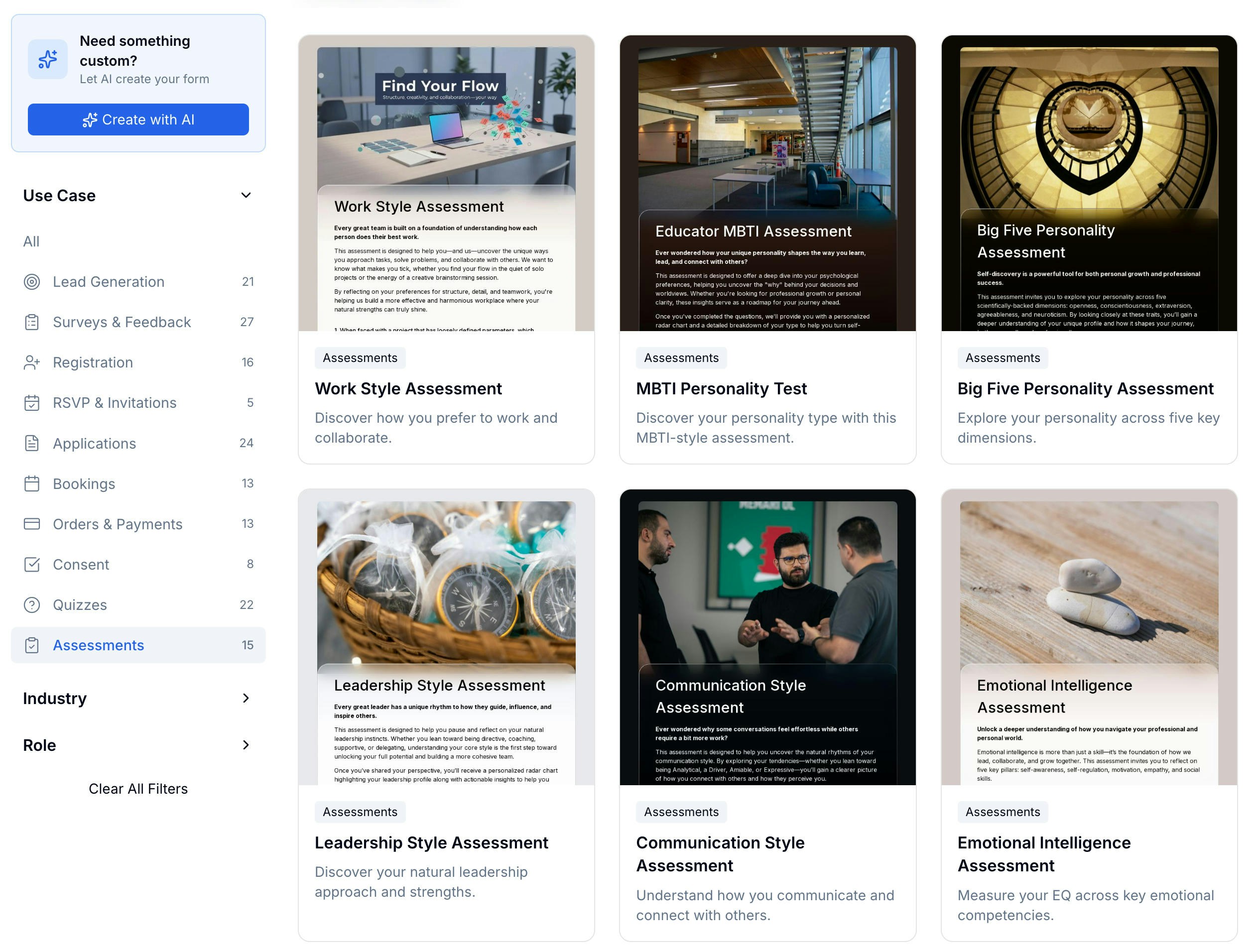
Browse Assessment Templates
15+ templates — personality tests, soft skills, leadership, and more
Setting Up Questions
The assessment editor shows your total question count and aggregate score at the top. The key difference from a quiz: there are no correct answers. Instead, each answer option carries its own point value, and the total score reflects the pattern of responses rather than accuracy.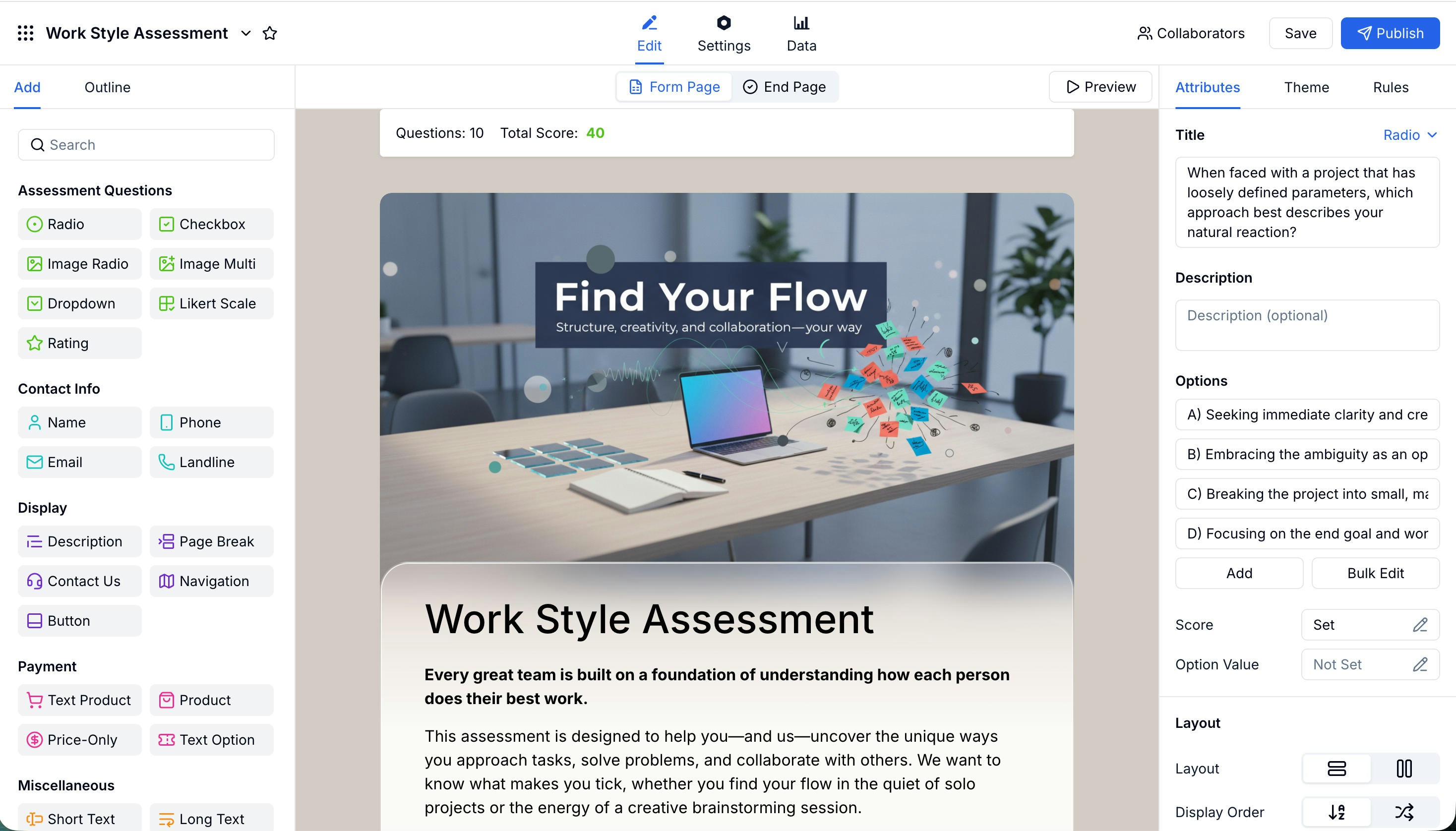
Assigning Scores to Options
Click Score in the right panel to assign a point value to each answer option individually. Each option can have a different value — for example, option A scores 1 point, B scores 2, C scores 3, D scores 4.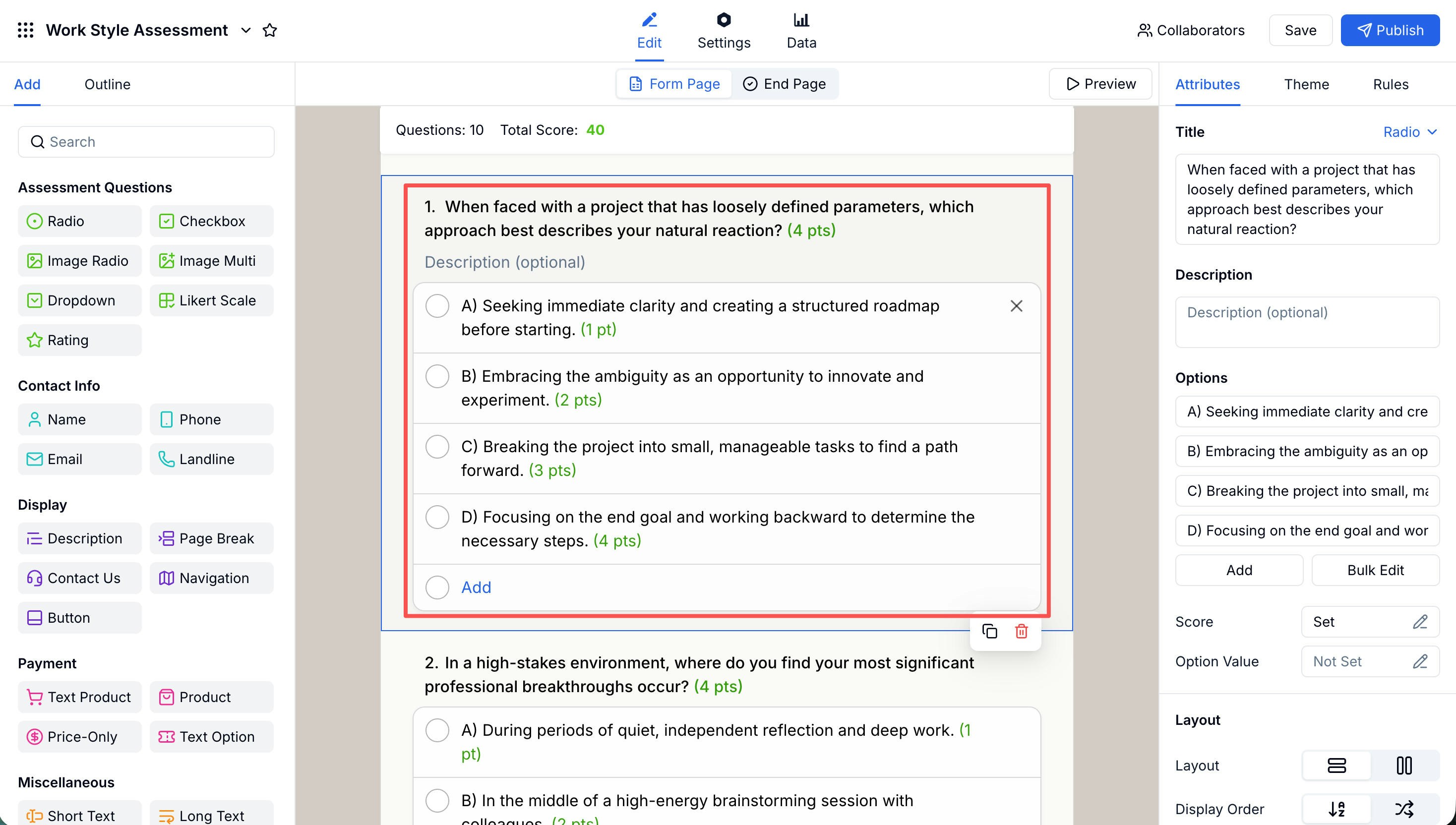
Configuring the Radar Report
The Assessment Report is the heart of every assessment. It shows participants their overall score, a radar chart across all dimensions, and personalized analysis and suggestions for each dimension. You configure it from the End Page panel.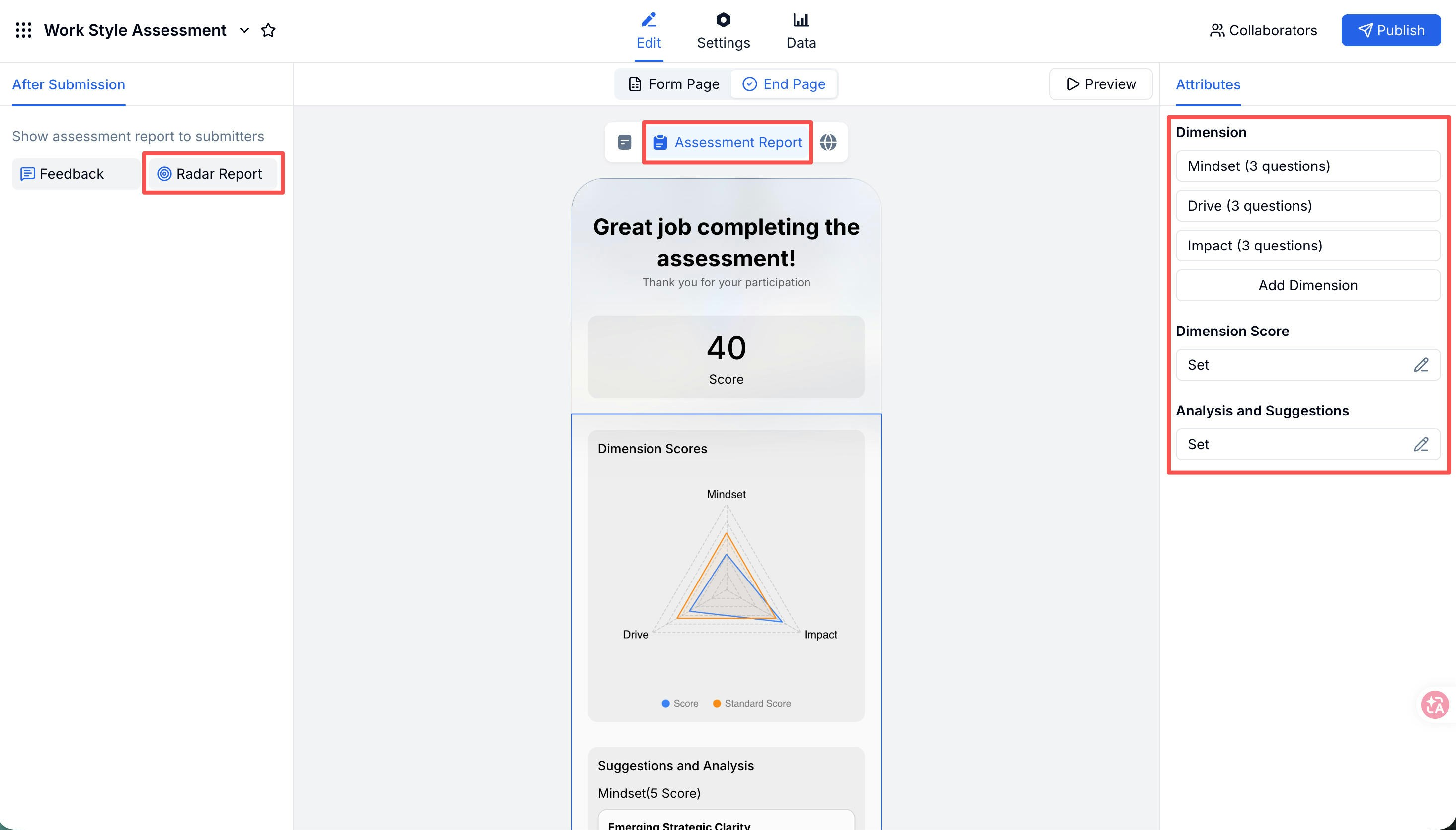
Dimensions
A dimension is a named category that groups related questions together — for example, Mindset, Drive, and Impact. The radar chart draws one axis per dimension, so the shape of the chart reveals a participant’s profile at a glance. To set up a dimension, click Add Dimension, give it a name, then use Bind Question to assign the questions that belong to it.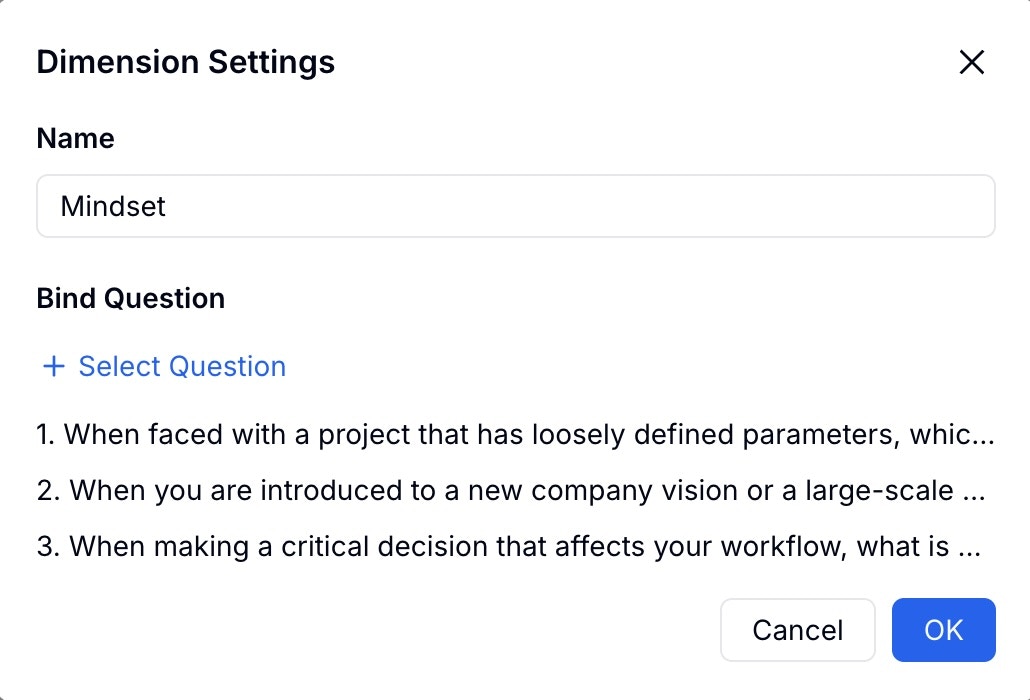
Dimension Score and Standard Score
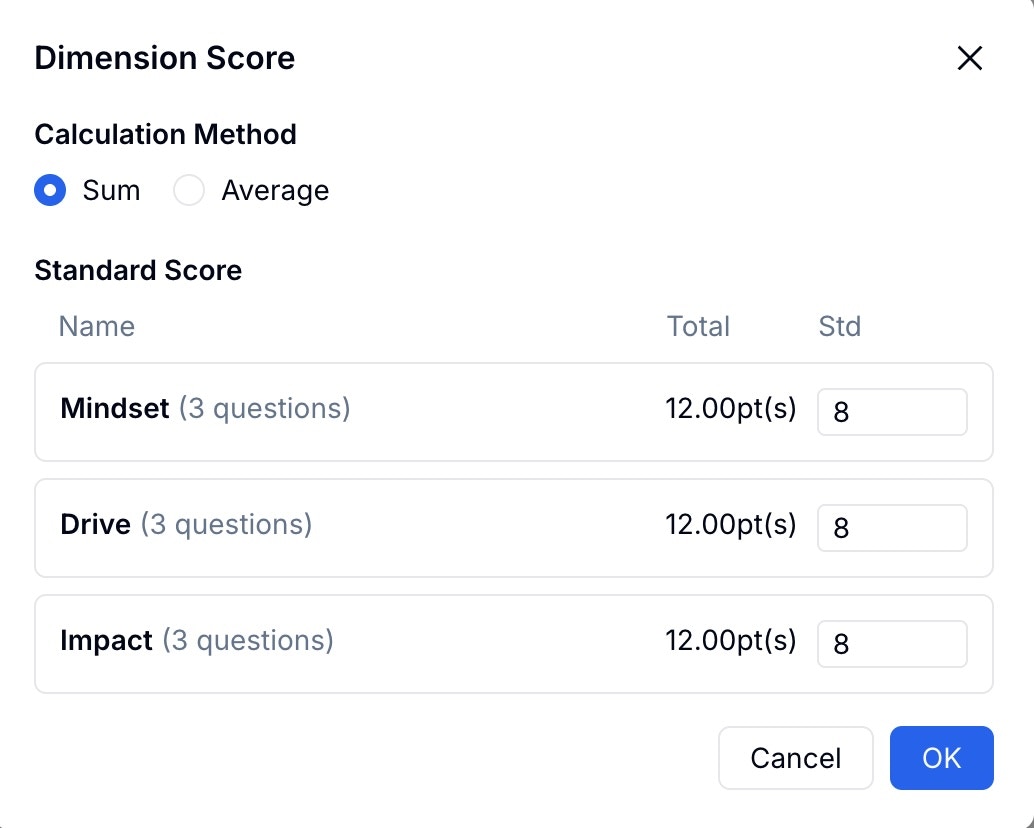
Click Dimension Score to configure two things for each dimension:- Calculation Method — choose Sum (add up option scores) or Average (divide by question count)
- Standard Score — the baseline score that appears as a reference line on the radar chart
Analysis and Suggestions
Click Analysis and Suggestions to write personalized feedback for each dimension based on score ranges. Select a dimension on the left, then add one or more score ranges. For each range, write a title, feedback text, and concrete suggestions.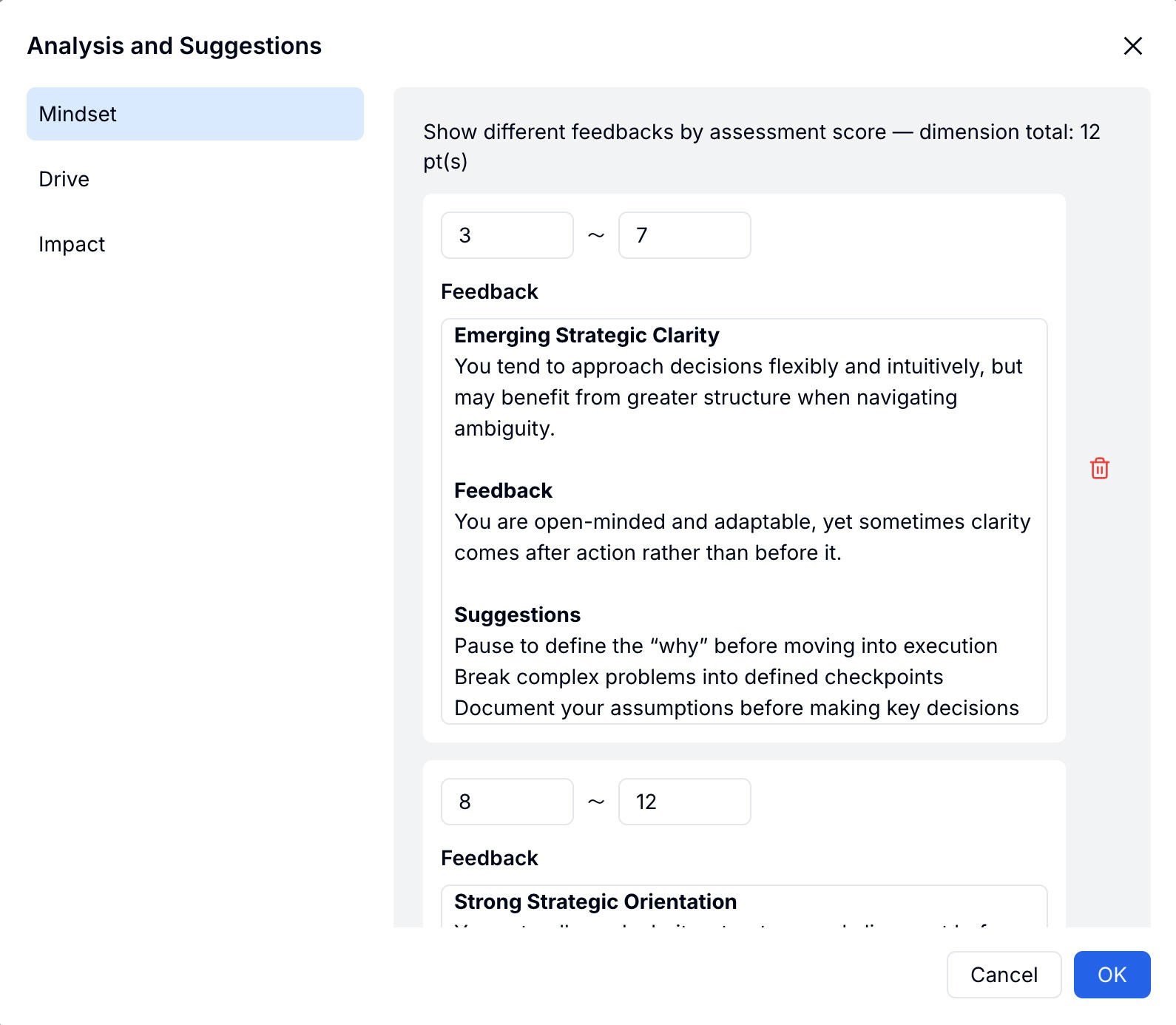
What Participants See
After submitting, participants land on a polished report page showing their overall score, the full radar chart with their score vs. the standard, and the analysis and suggestions for each dimension.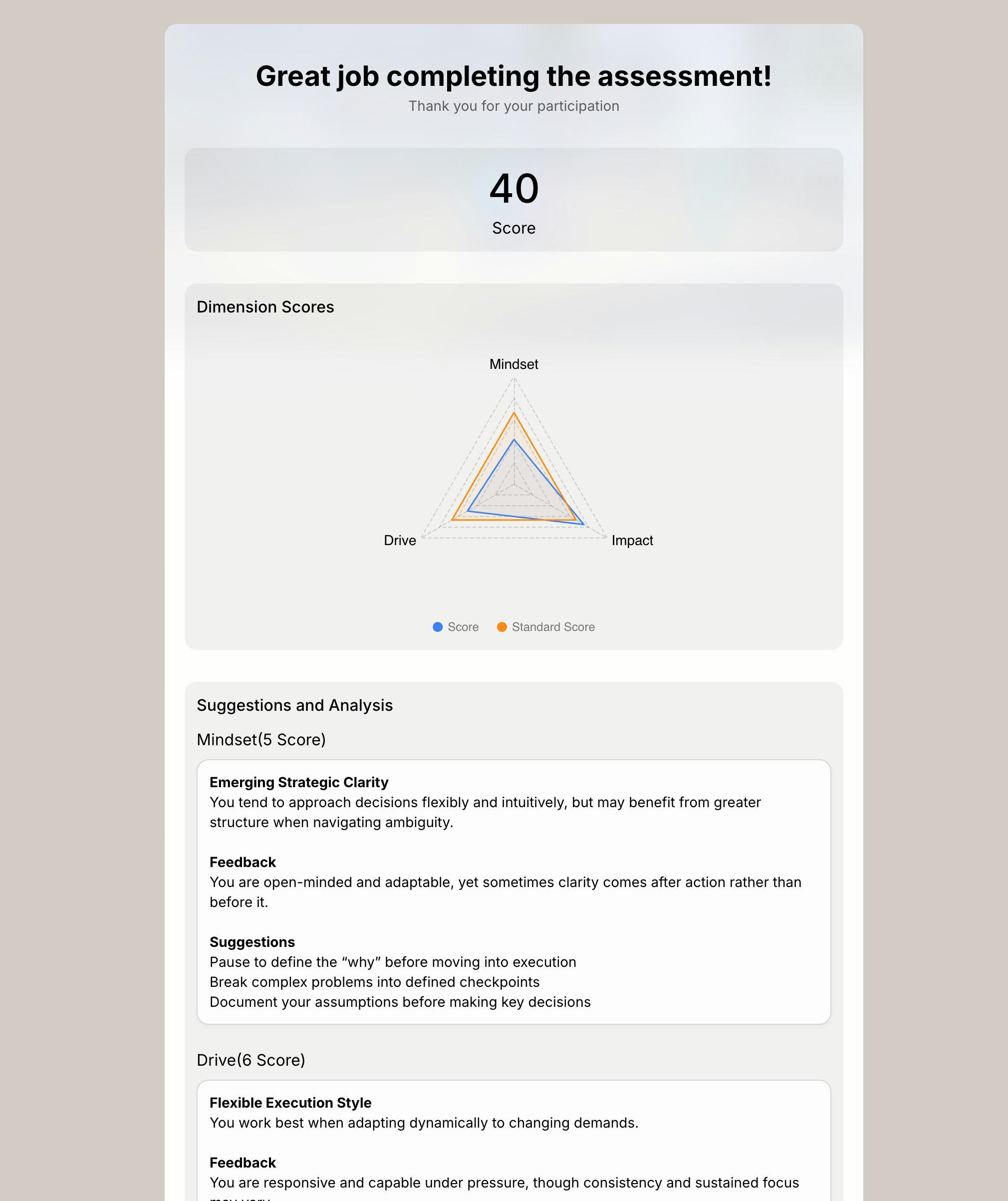
Advanced Settings
Assessment supports the same advanced settings as Quiz — pre-quiz notice, time limit, random questions, and anti-cheating. Find them under Settings → Quiz Settings.Quiz Settings reference
Pre-quiz notice, time limit, random questions, and anti-cheating options
Related
Assessment Guide
Step-by-step: build and publish an assessment
Quiz
Scored quizzes with correct answers — compare with Assessment
Assessment Maker
See the product page for AI-assisted assessment creation
Assessment Templates
Start from personality, leadership, and skills assessment templates
Training Quiz Guide
Build knowledge checks and feedback loops for employee learning