

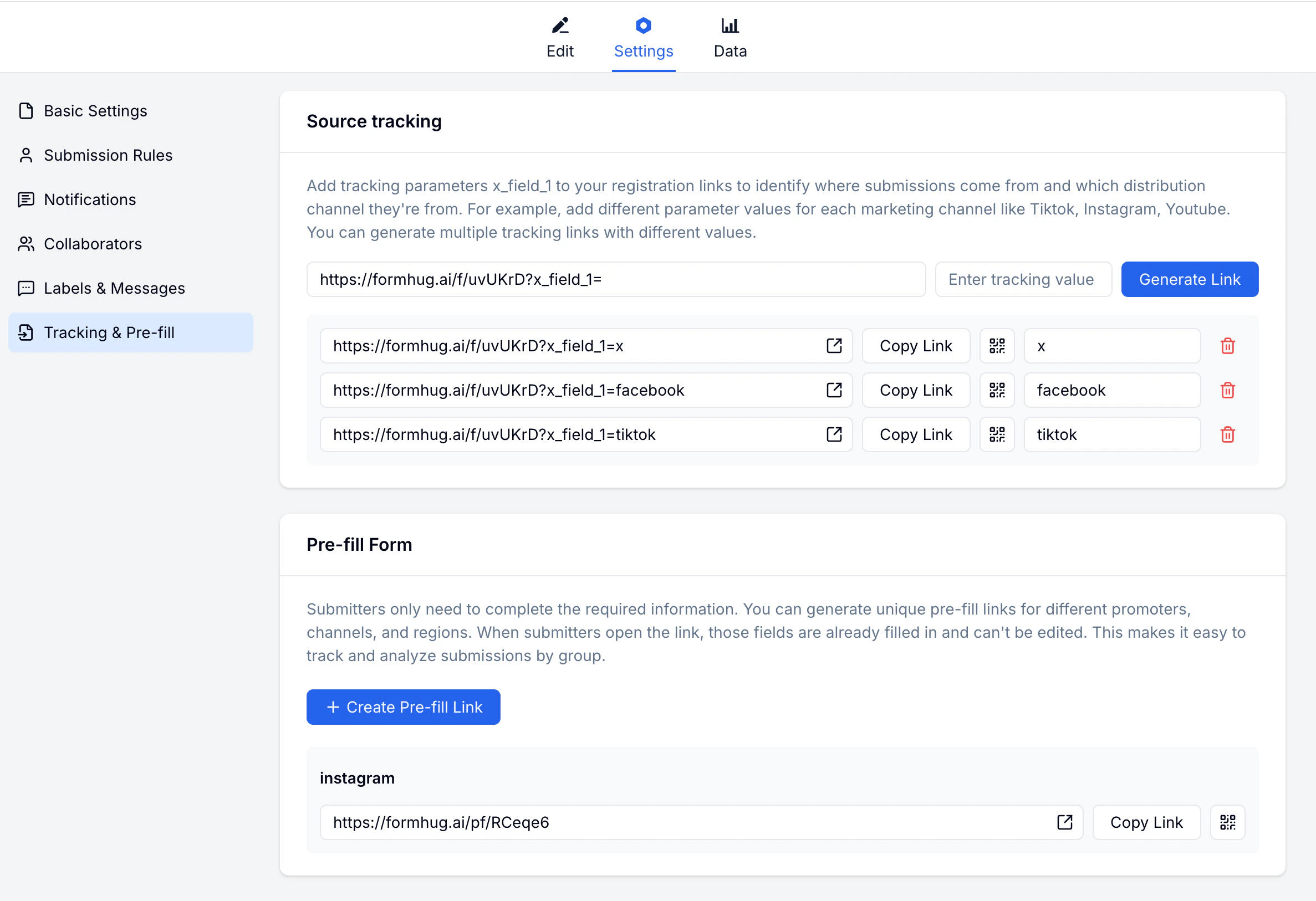
Source Tracking
Create named tracking links for each traffic source. Each link uses the same form URL but tags submissions with the source name, so you can see where responses originated. Common tracking sources:
Each tracking link has a Copy Link button and a QR code icon for quick sharing.
Creating a Tracking Link
1
Open Tracking & Pre-fill
Go to your form → Settings → Tracking & Pre-fill.
2
Add a source
Enter a name for the source (e.g.
instagram).3
Copy the link
Copy the generated tracking link and use it when sharing to that channel.
Pre-fill Links
Generate a link with certain fields already completed. Useful for personalized invitations or when you already know some of the submitter’s data.Creating a Pre-fill Link
1
Open Tracking & Pre-fill
Go to your form → Settings → Tracking & Pre-fill and find the Pre-fill section.
2
Name the link
Enter a descriptive name so you can identify this pre-fill link later.
3
Set field values
Choose which fields to pre-fill and enter the values.
4
Copy the link
Copy the generated URL with pre-fill parameters included.
Related
Share Link
Publish and share your form
Submissions
View and filter your responses
Lead Generation Guide
Learn how to structure campaign forms and track response sources
Lead Generation Templates
Start from demo, quote, callback, and early-access forms