

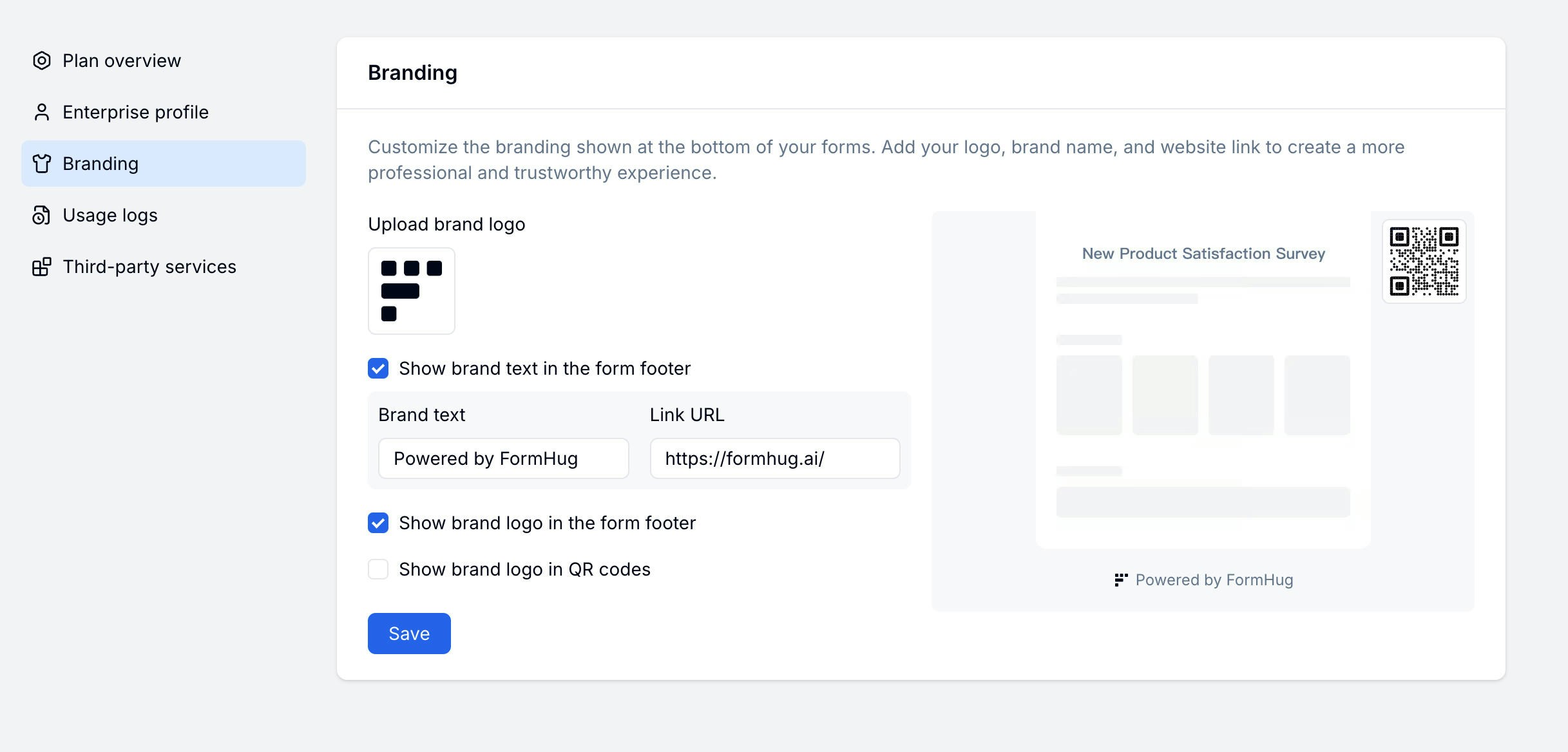
Branding Options
Setting Up Workspace Branding
1
Open Workspace Settings
Go to your account sidebar and select Branding under workspace settings.
2
Upload your logo
Click the logo upload area and choose your image. PNG or SVG with a transparent background works best.
3
Add brand text and link
Enter your brand name and the URL your logo should link to.
4
Configure footer and QR code toggles
Turn off Show footer logo to remove the FormHug attribution, or enable Show QR code logo to embed your logo in QR codes.
Removing the FormHug footer logo and other white-label options may require a paid plan.
Related
Themes
Customize colors and visual style per form
Share Link
Publish and share your branded form
Pricing
Review plan options for white-label and branding needs
QR Code & Poster
Add your logo to QR codes and AI-generated posters