

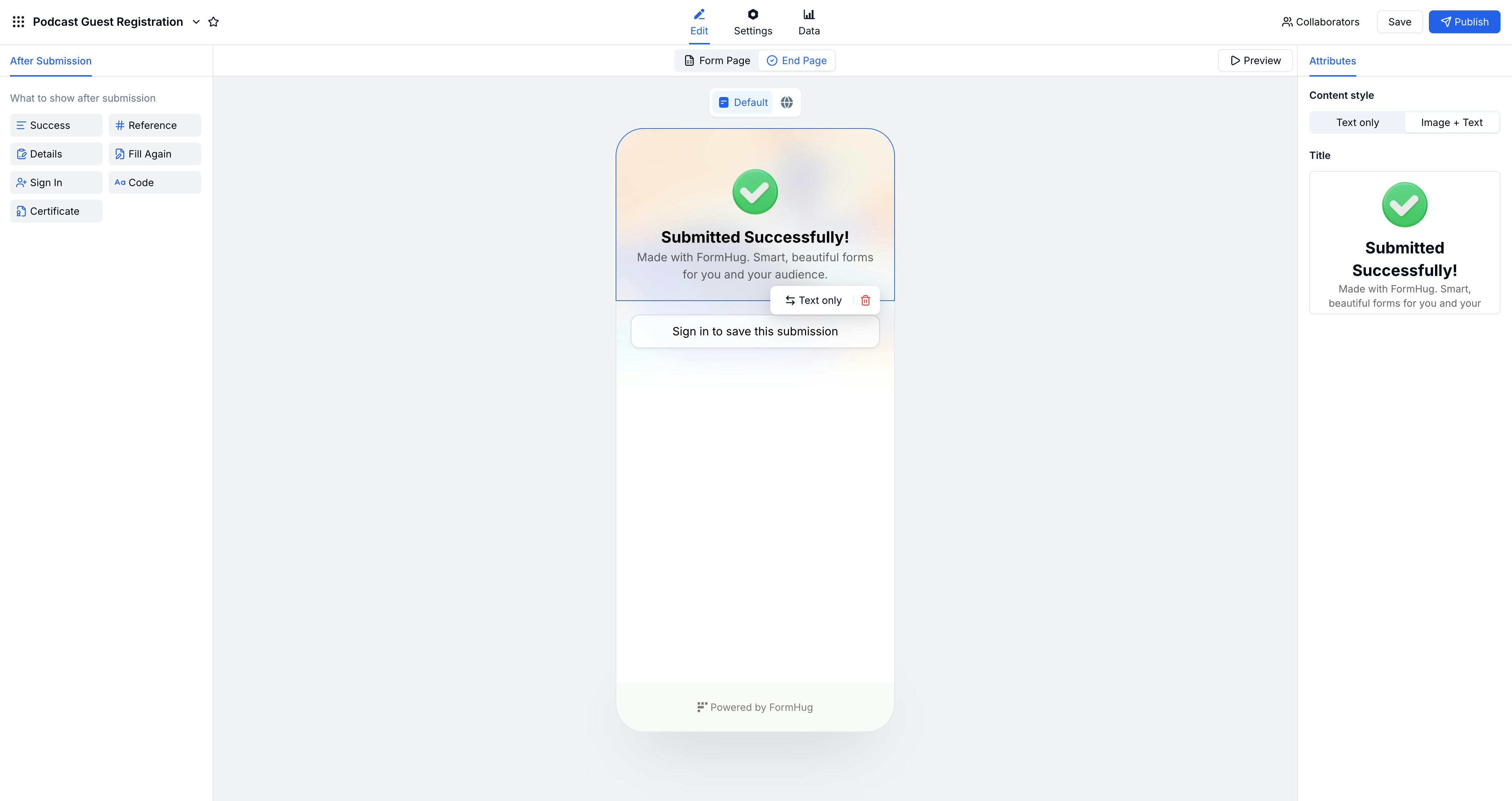
Default End Page
The default end page focuses on confirmation and follow-up:
Use this when you want a clean “thank you” plus optional proof or a copy of their submission.
Quiz Results Page
For quizzes and tests, the end page becomes a results screen:Assessment Report
For skills and assessments, the end page shows a structured report:Redirect Page
When the next step lives outside FormHug, send submitters directly to another URL.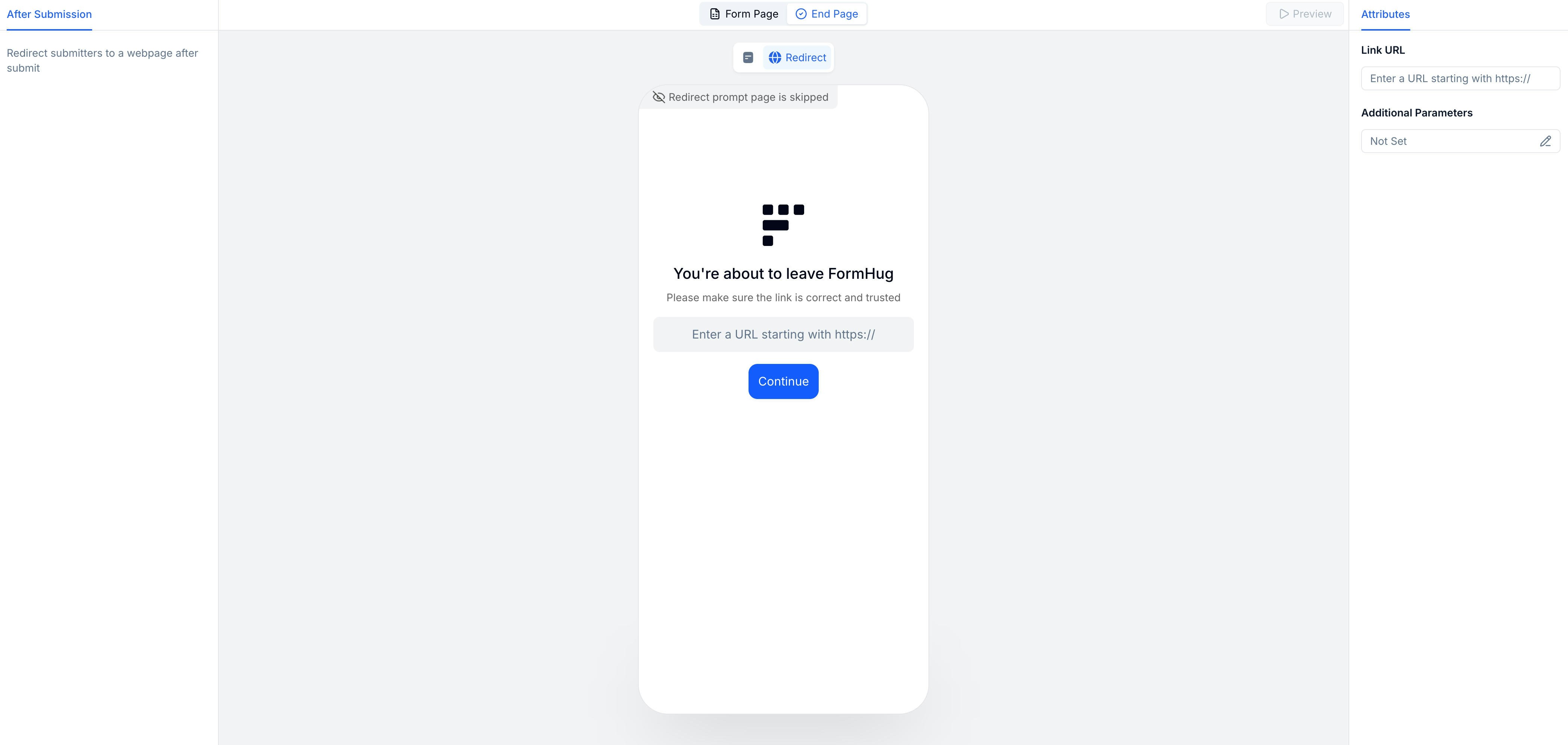
- Set any URL as the redirect destination (e.g. payment page, calendar, community)
- Pass submission data as URL parameters for integrations
- Useful for multi-step flows: form → payment → confirmation
Configuring the End Page
1
Open form settings
In the form editor, click the End Page tab or open form settings.
2
Choose end page type
Select Default, Quiz Results, Assessment Report, or Redirect.
3
Customize
Set the message, what to display (score, certificate, summary), or enter a redirect URL.
Related
Form Builder
Form structure and fields
Quiz Guide
Build quizzes with scoring
Assessment Guide
Build skill assessments
Quiz Templates
Use quiz result pages for scores, feedback, and certificates
Assessment Templates
Use assessment reports for radar charts and personalized feedback
How to Create an Online Quiz
Plan scores, feedback ranges, and result pages before publishing