

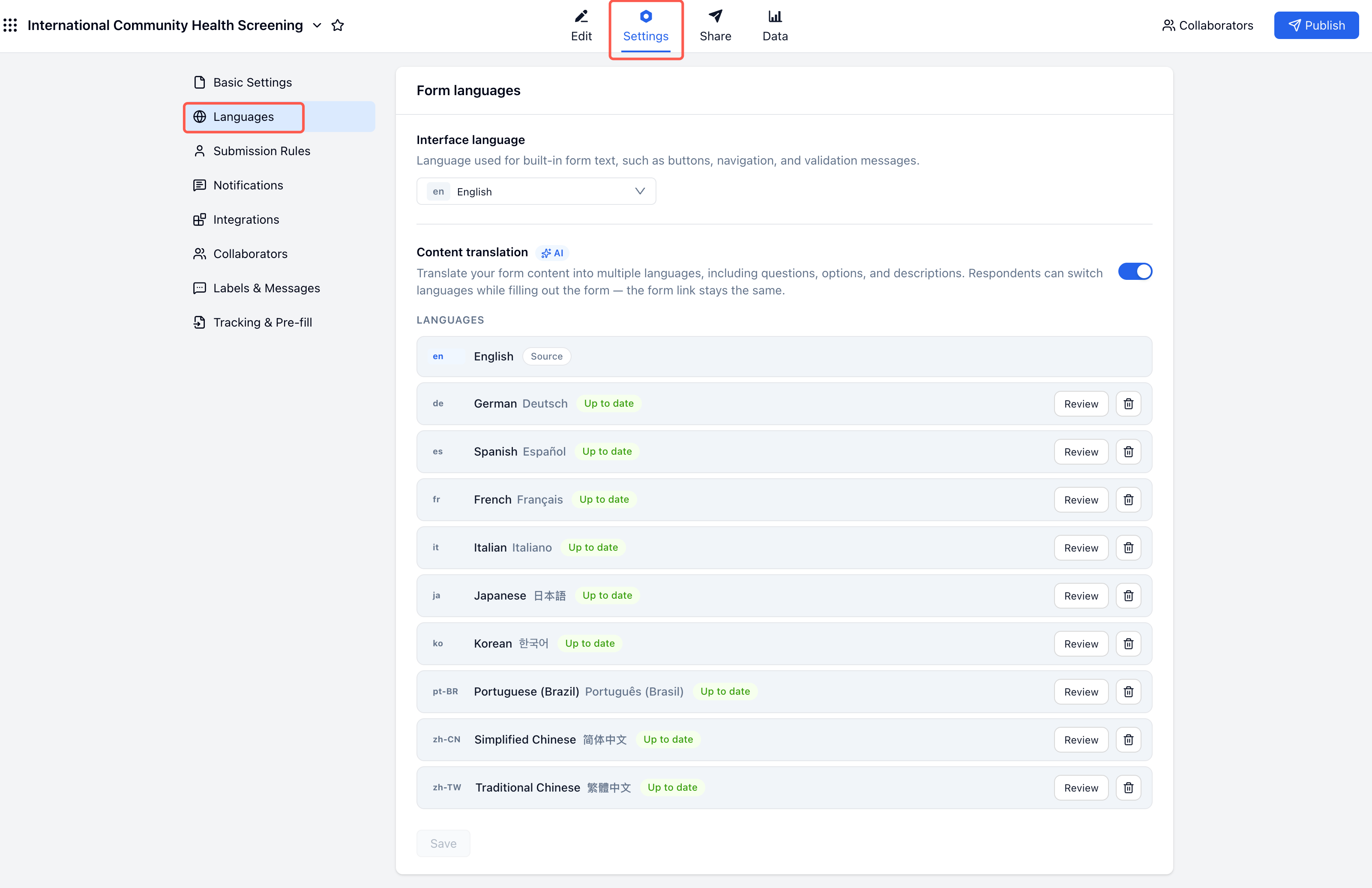
What Form Languages Control
FormHug separates language settings into two parts:
The interface language is the default language for the form. Content translation adds extra respondent-facing languages on top of the source form.
Open Language Settings
You can open language settings from either the editor toolbar or the form settings area.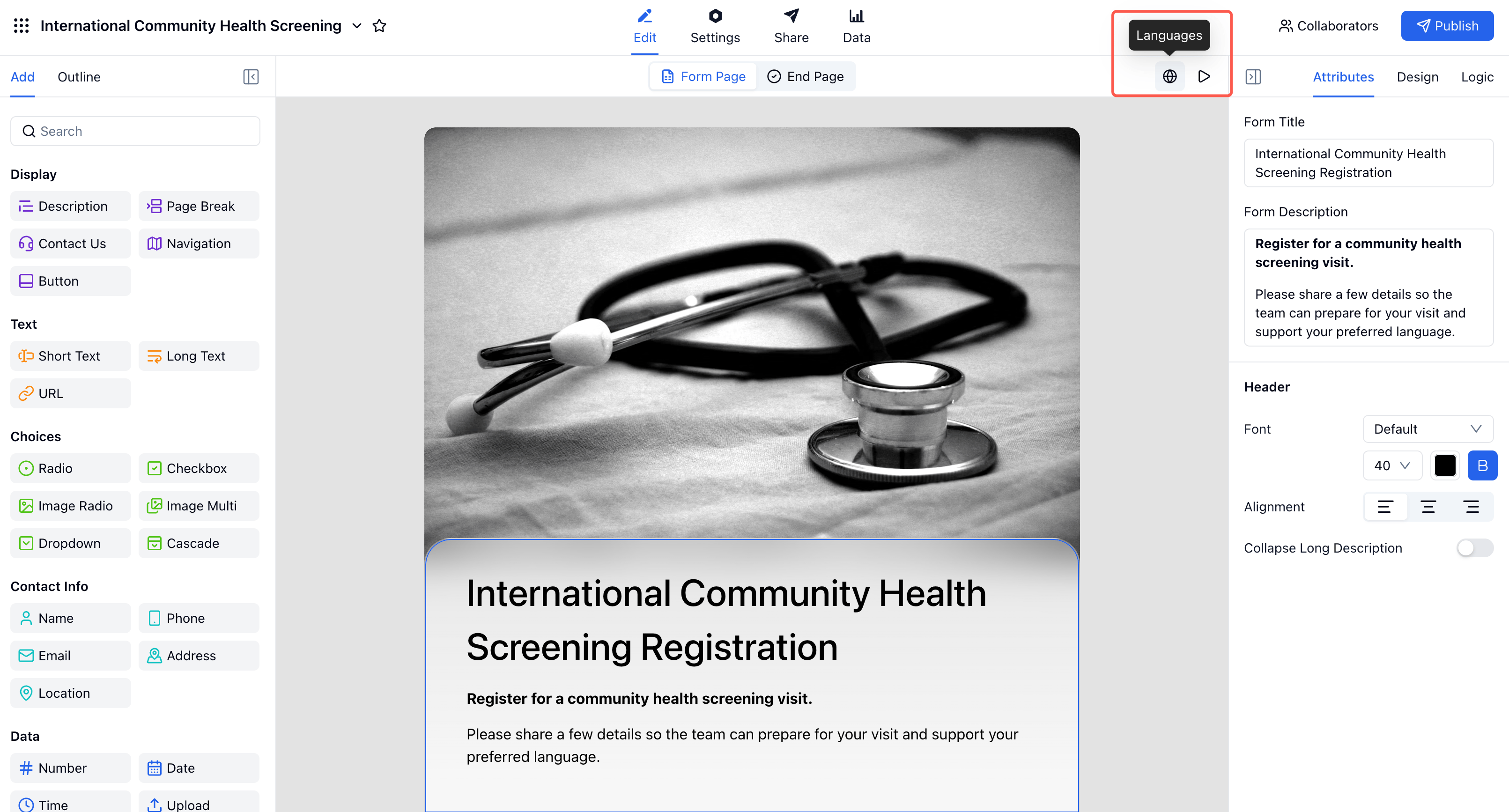
1
Open the form editor
Open the form you want to translate.
2
Open Languages
Click the Languages button in the editor toolbar, or go to Settings -> Languages.
3
Choose the interface language
Set the language used for built-in form text, including buttons, navigation, and validation messages.
Add AI Translations
Turn on Content translation to translate the form itself. The form link stays the same, and respondents can switch languages while filling out the form.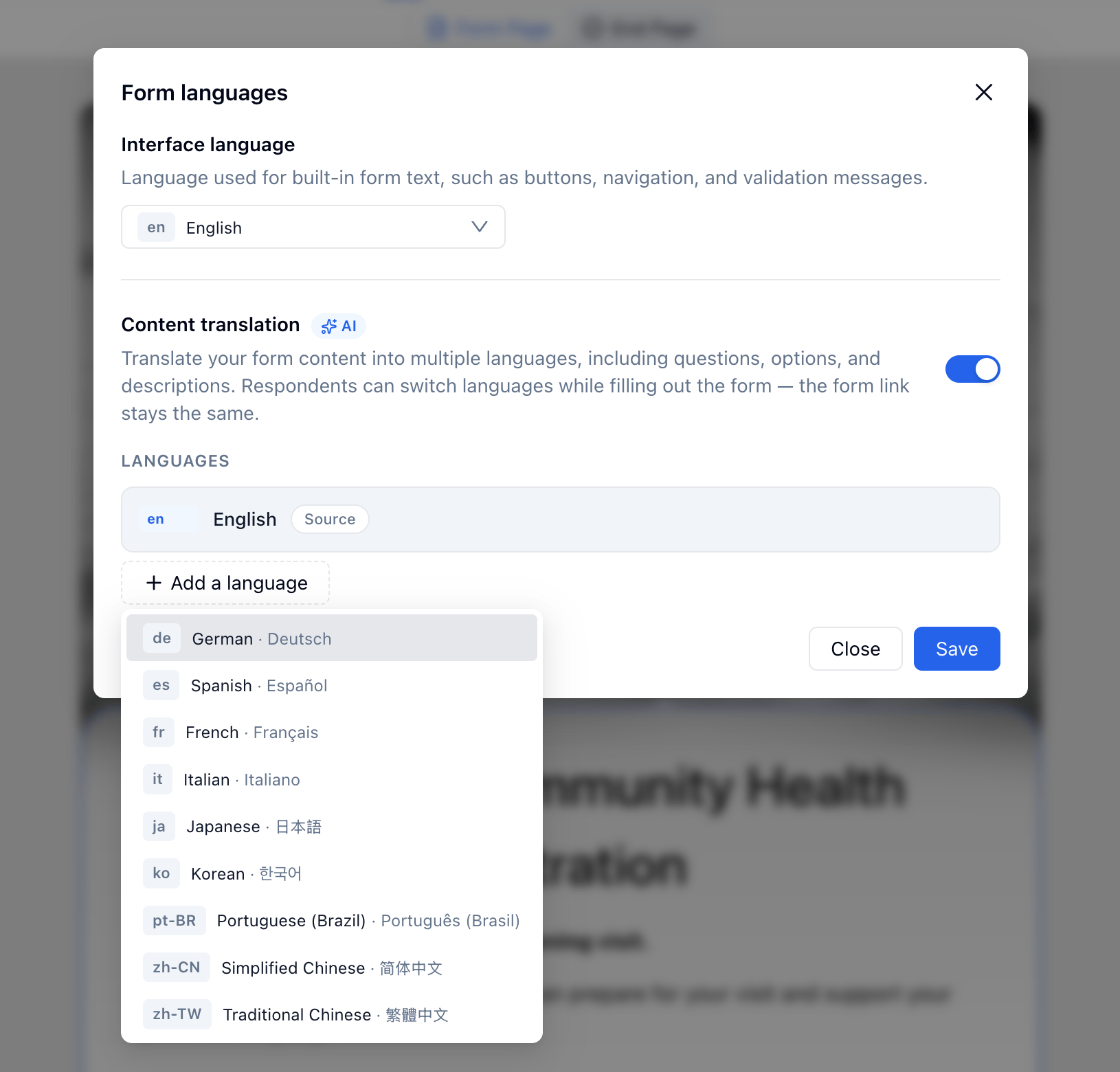
1
Enable Content translation
In the Form languages dialog, turn on Content translation.
2
Click Add a language
Choose one or more languages from the language menu.
3
Wait for AI translation
FormHug starts translating each language automatically after you add it.
4
Save
Save the language settings when the language list is ready.
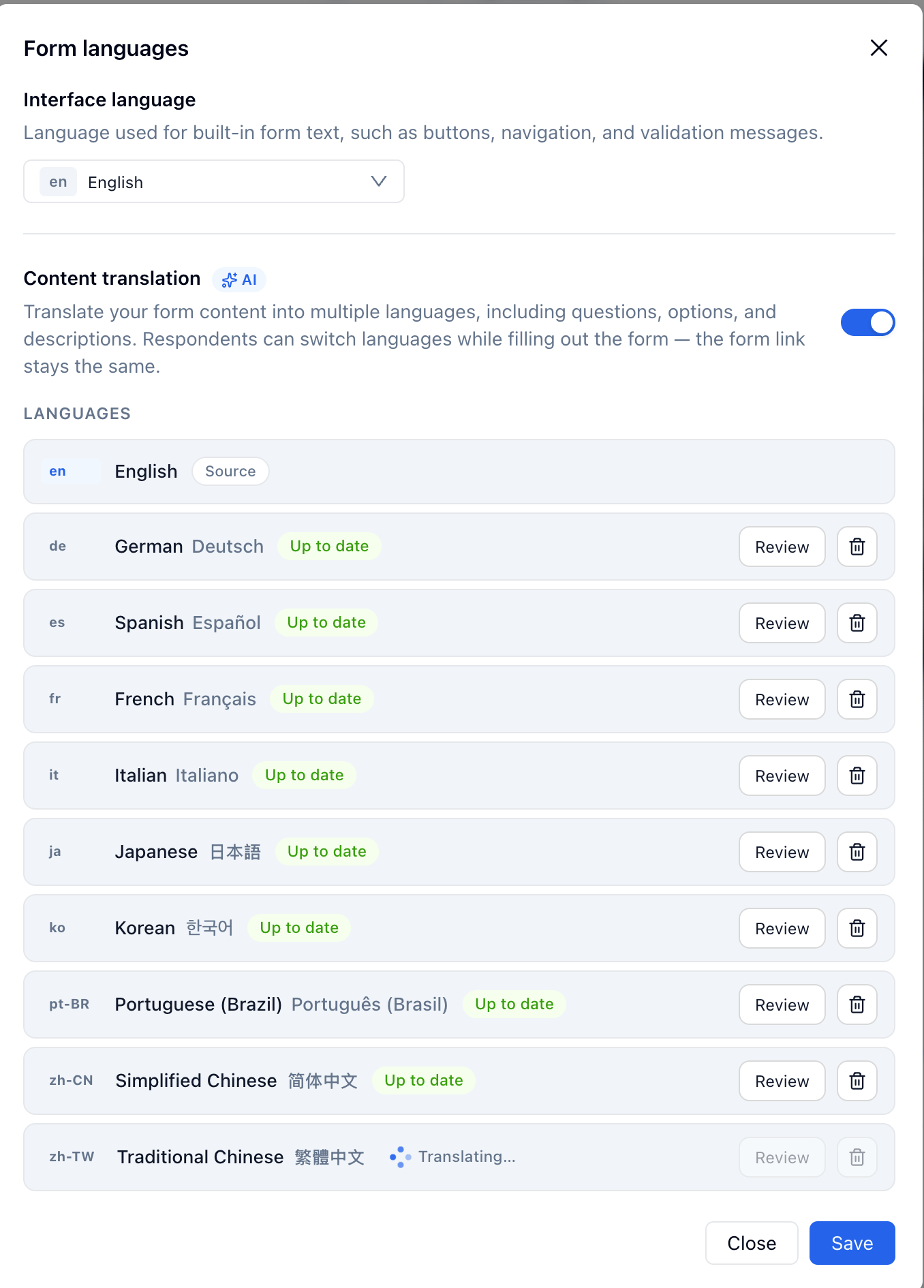
Review and Edit Translations
AI translation gives you a fast first version, but you can review the result before publishing or after updating the form.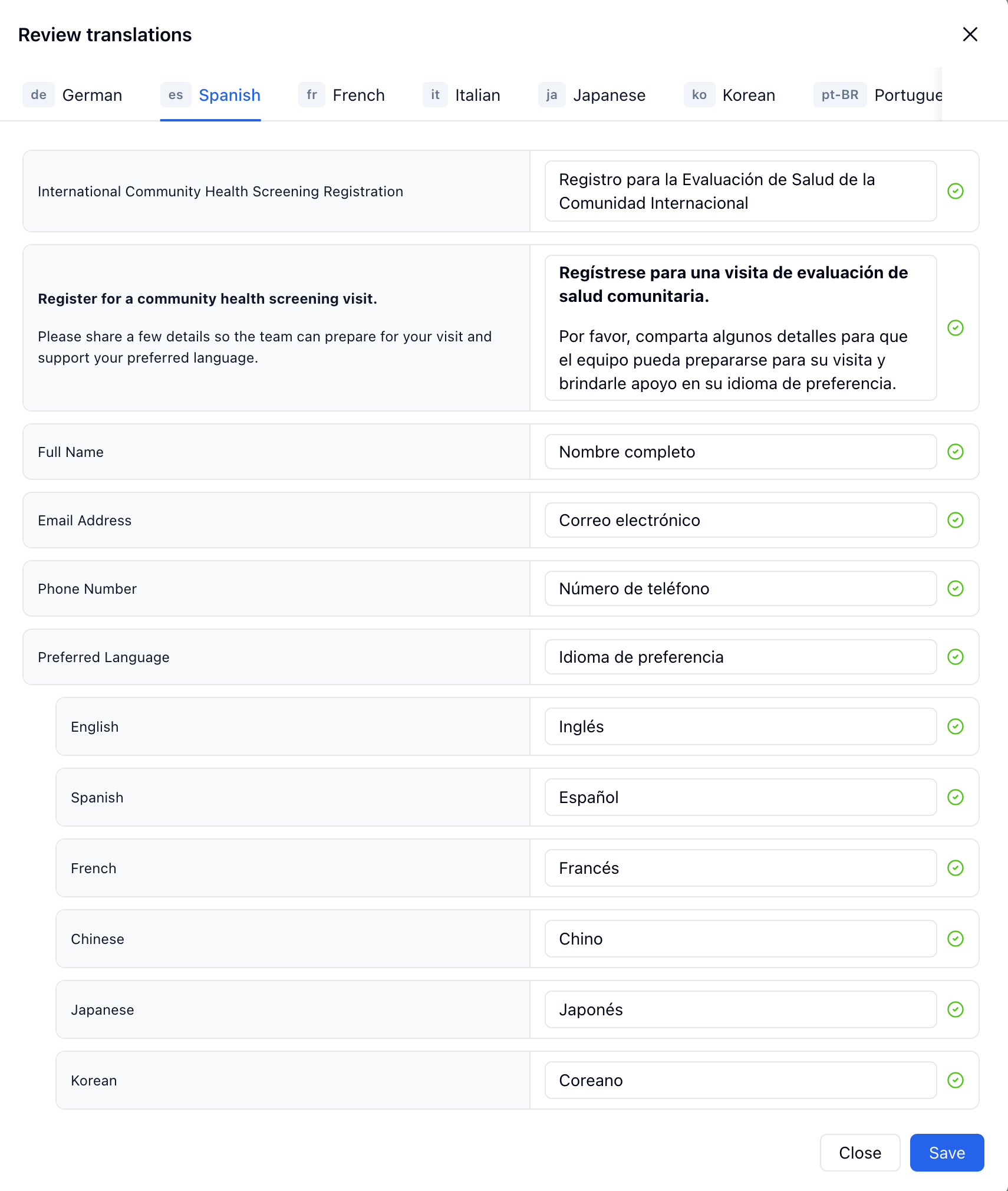
1
Click Review
In the language list, click Review next to a translated language.
2
Check translated content
Review translated titles, descriptions, questions, options, and other respondent-facing text.
3
Edit if needed
Change any translation manually when you want a more precise phrase, local term, or brand tone.
4
Save
Save your edits. The translated form updates for respondents who use that language.
What Respondents See
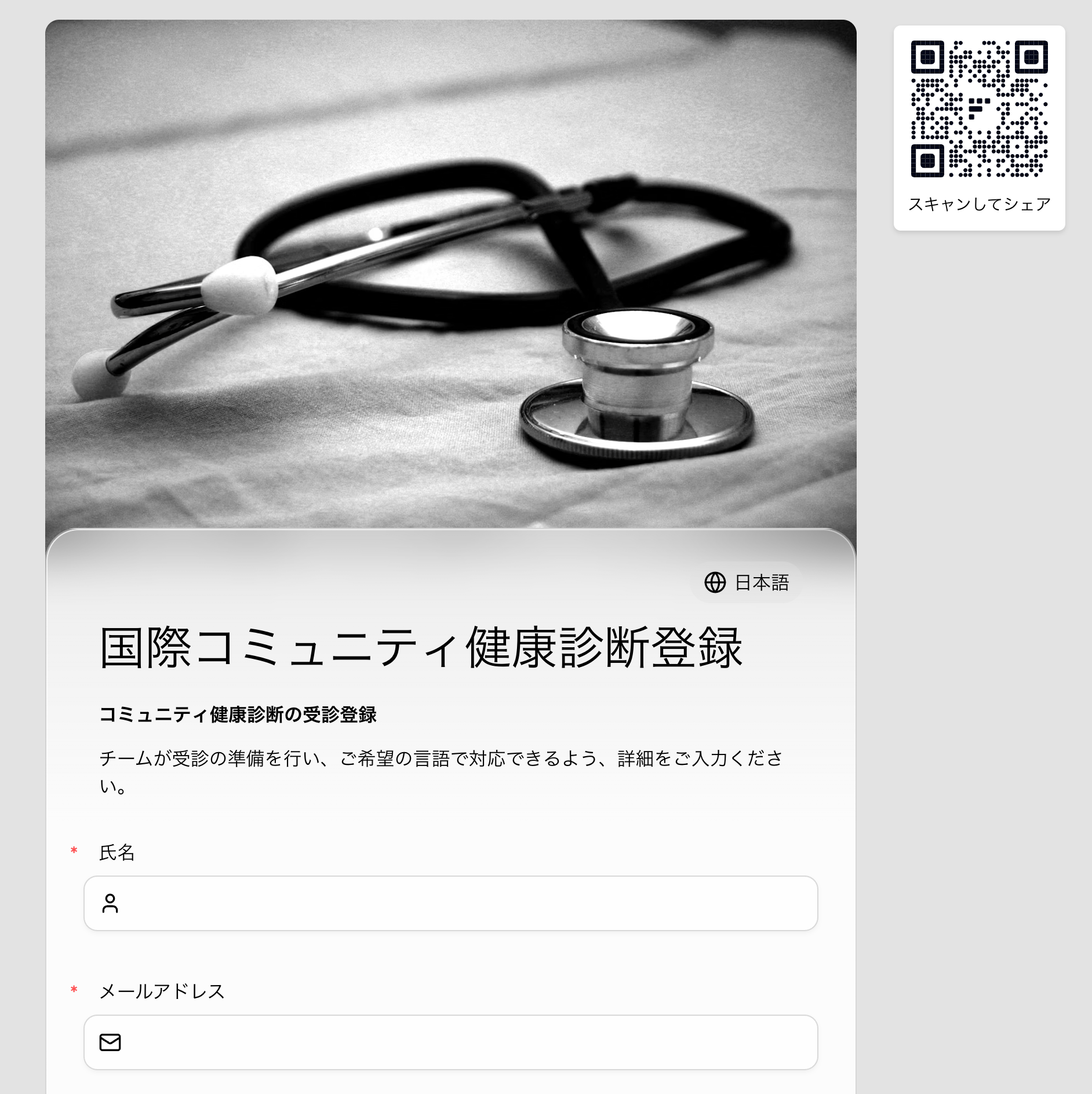
When respondents open the form, FormHug checks their browser language. If a matching translation is available, the form opens in that language automatically. If FormHug cannot find a matching translation, the form falls back to the original form language. Respondents can also switch manually from the language selector at the top of the public form.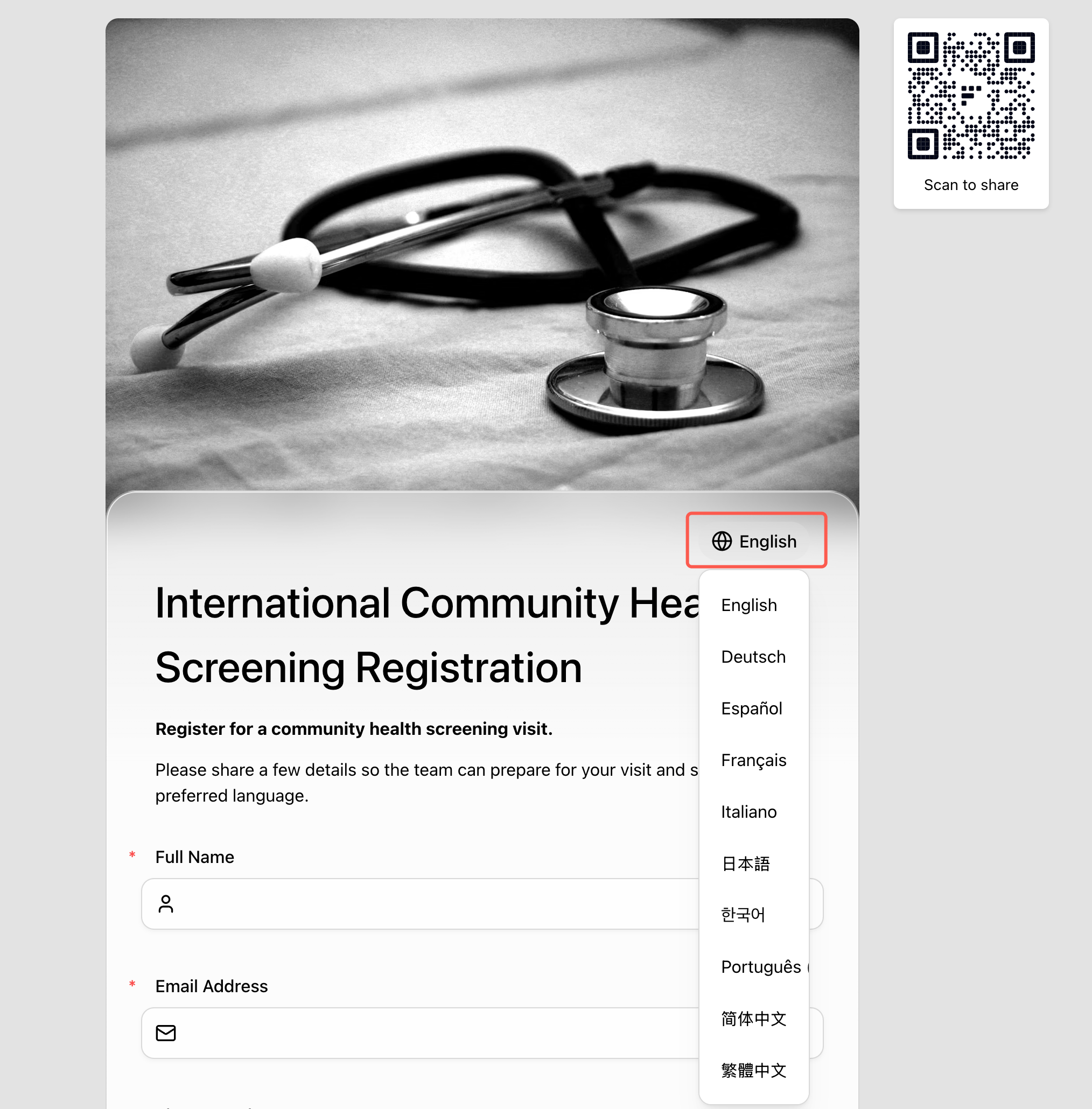
What Gets Translated
Content translation covers the form and the content shown after submission, including:- Form title and description
- Field labels
- Field options
- Help text and descriptions
- Submission-facing content after the form is completed
Related
Create a Multilingual Form
Build a community registration form for respondents in multiple languages
Basic Settings
Control access, filling behavior, schedules, and other core form behavior
Labels & Messages
Customize button labels and system messages for your form
Sharing & Publishing
Share the same form link with every language audience